
GUIDES
How to see your PC screen on your phone and draw on it
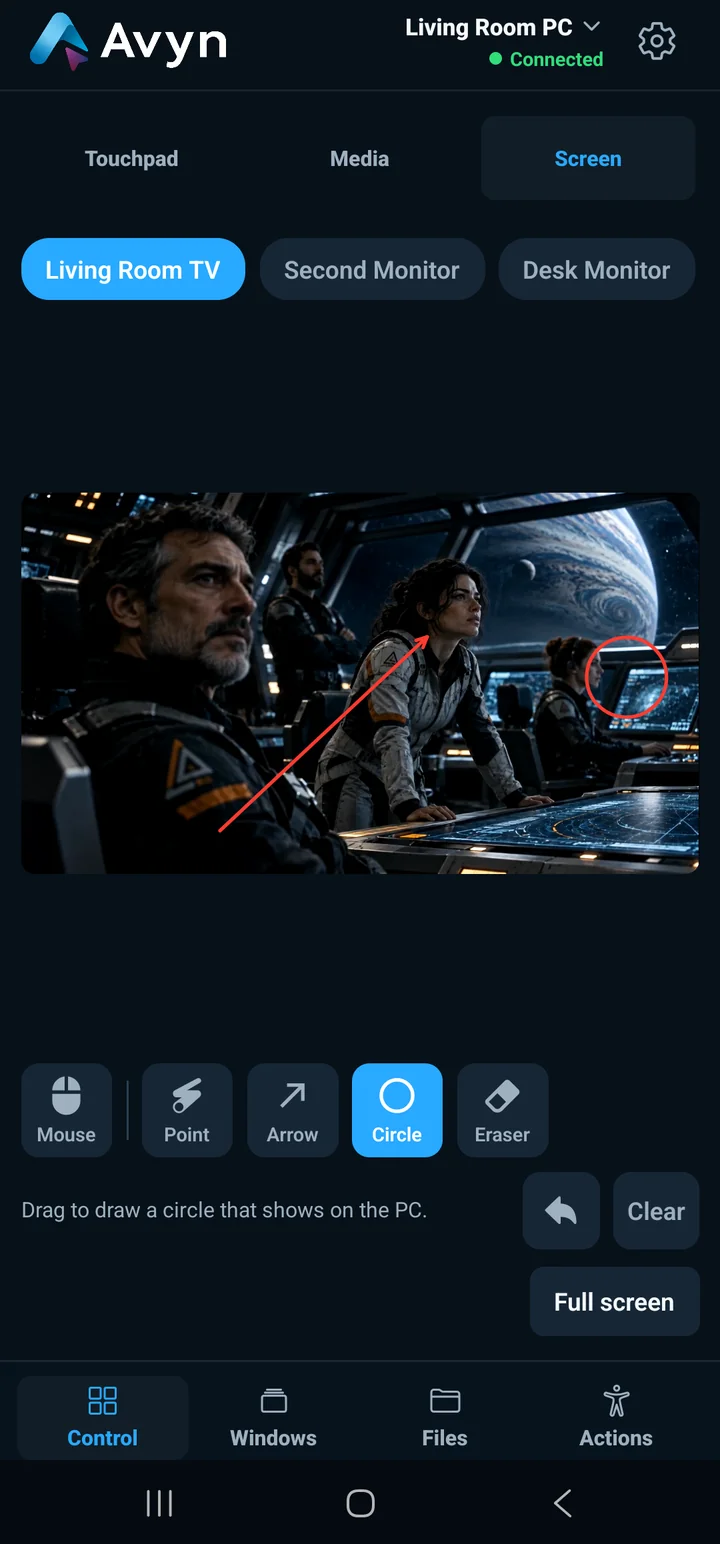
Avyn can show one of your PC's monitors on your phone, live. While you watch, you can point with a highlighted pointer and draw arrows and circles that also show on the PC's screen. It is useful for explaining something to whoever is at the PC, for guiding a presentation or for seeing what is going on without getting up.
Updated
What you need
- Avyn Agent on the PC and the Avyn Remote app on an Android phone, already paired and on the same local network.
- Screen streaming turned on in Avyn Agent (it can be turned off in its settings).
- Depending on the app's edition, this feature may show a lock and its Premium screen.
Step by step
- In the app, go to Control and open the Screen sub-tab. Streaming starts when you enter it and stops when you leave or send the app to the background.
- If the PC has several monitors, pick which one to watch. You can change it live, without leaving the session.
- Switch to full screen to see the monitor in landscape, without the app's bars. To go back, use the exit button or Back.
- Zoom in with two fingers, up to 4 times; move around the image with two fingers, and return to normal size with a double tap.
- Pick a tool: the highlighted pointer to point, the arrow, the circle or the eraser. Draw with your finger.
- Use undo to remove the last drawing, or clear to remove them all.
The drawings and the pointer also show on the PC's monitor, in a transparent window, but they do not get in the way: clicks and keyboard pass right through. When you change monitor or the session ends, the drawings are erased.
Video is streamed as H.264 up to 720p at 30 frames per second, over your local network. Actual quality depends on your Wi-Fi.
Who is watching and how to cut it off
- Only a paired phone can see the screen, and only one at a time: if another phone already has it, the app tells you.
- While someone is watching, Avyn Agent shows it in the tray and in its window, with a button to stop the stream at once.
- You can turn the feature off in Avyn Agent's settings: it cuts any stream in progress.
- The stream ends by itself if the phone loses its connection, if a few seconds pass with no signal, if the monitor disappears or if you revoke the phone.
- Avyn stores no image of your screen, neither on disk nor in its logs.
- Everything travels over your local network, on the same encrypted connection pinned to your PC that the rest of Avyn uses.
If something does not go as expected
- Another phone has it: only one session per PC. Ask them to close it, or stop it from the PC's tray.
- The feature is off on the PC: turn it on in Avyn Agent's settings.
- It stops at the lock screen or on a permission prompt: Windows does not let an ordinary program capture those screens. The app tells you the reason.
- A copy-protected video shows black: Windows decides that, not Avyn.
- It looks choppy: it depends on your Wi-Fi signal. If it cannot keep up, Avyn drops old frames and resumes from a full frame instead of building up delay.
Frequently asked questions
- Can I hear the PC's audio?
- No. The feature streams only the picture of one monitor.
- Can I control the PC while watching it?
- Yes: from the phone you can move the mouse and type as usual, and see the result live.
- Are the drawings saved?
- No. They are erased when you change monitor and when the session ends, and Avyn stores no image of the screen.